
❋ WiFi + Entertainment
WiFi + Streaming Guide
General Internet Use
On your phone, laptop, or tablet, open WiFi settings.
Select RainierVibe from the list of available networks.
Enter the password RainierChill (case-sensitive).
You're connected! Speeds are fast enough for video calls, work, and browsing throughout the apartment, deck, and yard.
TV Streaming (Smart TV)
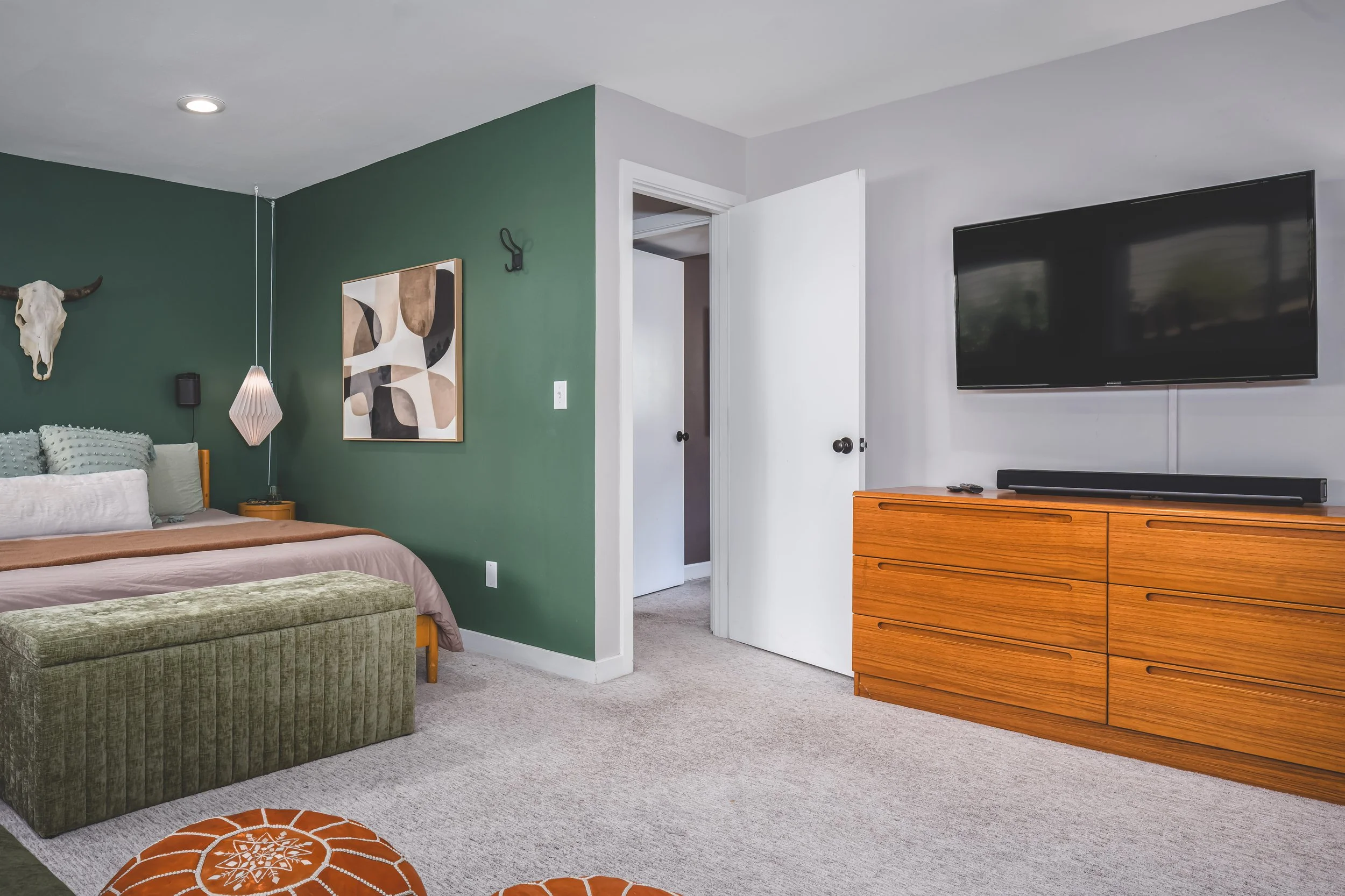
Turn on the TV and select Home or Apps on the remote.
Choose your streaming app (Netflix, Hulu, YouTube, Disney+, etc.).
If the app asks you to connect to WiFi, select RainierVibe and enter RainierChill.
Log into your own streaming accounts as you normally would. Your login info is not saved after checkout.
For the living room projector and screen, use the same remote to switch input, then follow the same steps above.
Tip: If a login screen is easier to type on your phone, most apps let you activate by visiting a code-entry website and linking through your phone's browser instead of typing on the remote.
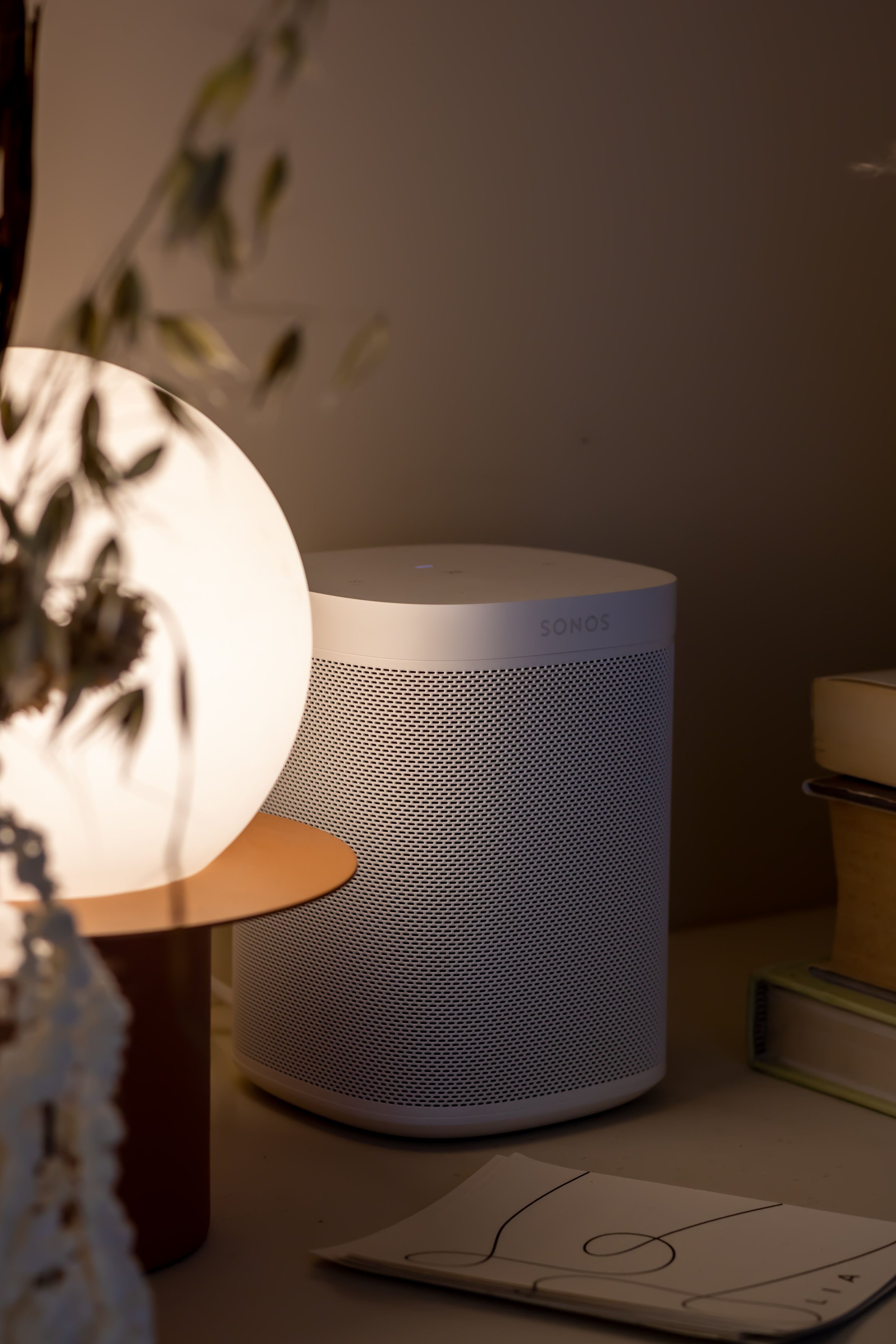
Sonos Listening
Download the free Sonos app on your phone (App Store or Google Play).
Open the app and make sure your phone is connected to RainierVibe.
The app should automatically detect the in-home Sonos speaker(s). If prompted to join a system, select the existing household.
Link your preferred music service (Spotify, Apple Music, Amazon Music, etc.) within the app, or use Sonos Radio for free.
Choose your room/speaker in the app and press play.